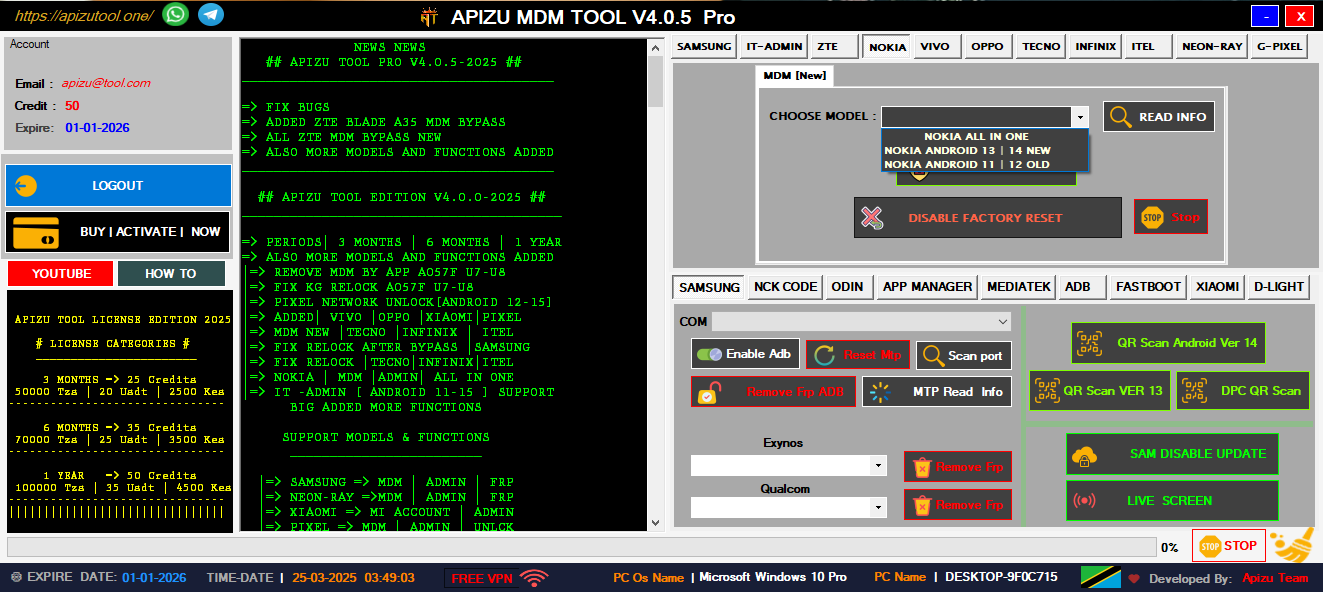
Remove Samsung MDM lock and regain full device access with advanced bypass techniques.
Quick and secure QR code scanning for unlocking and configuration tools.
Bypass Google account lock on various Android devices easily and securely.
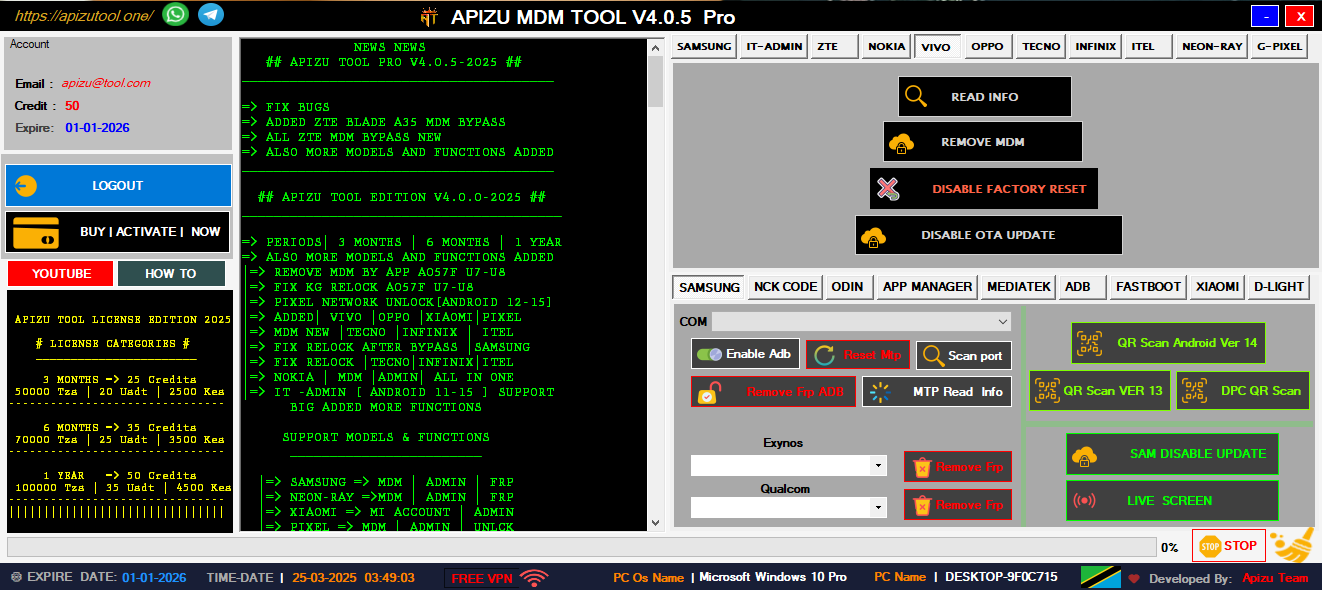
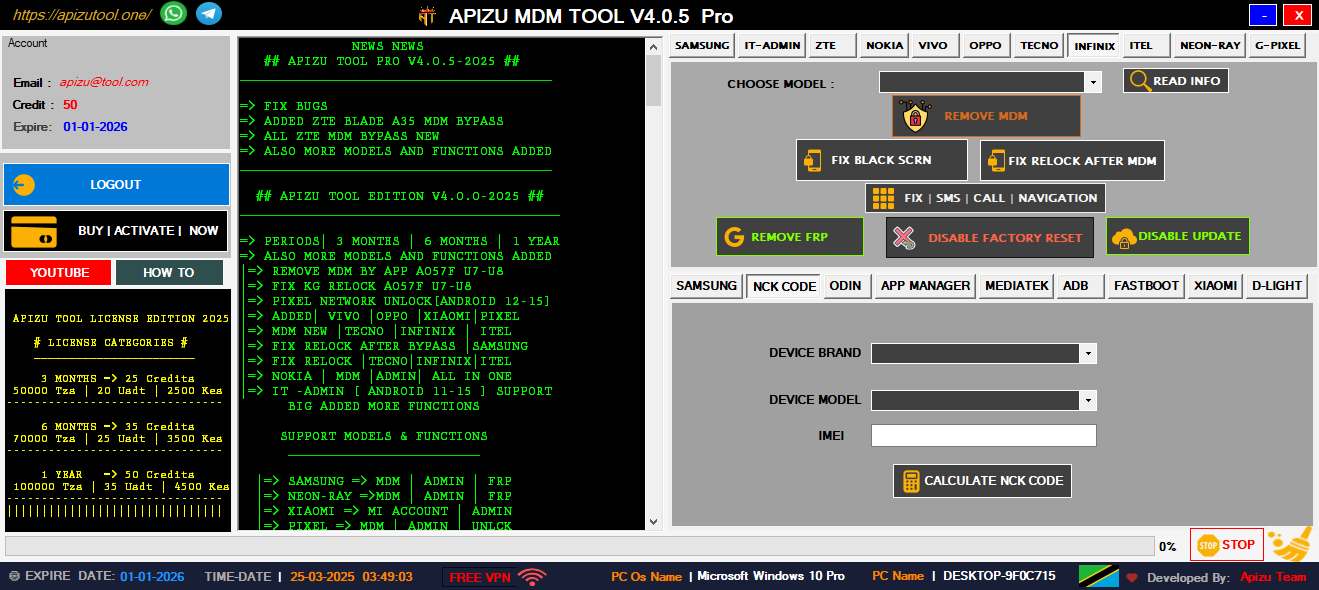
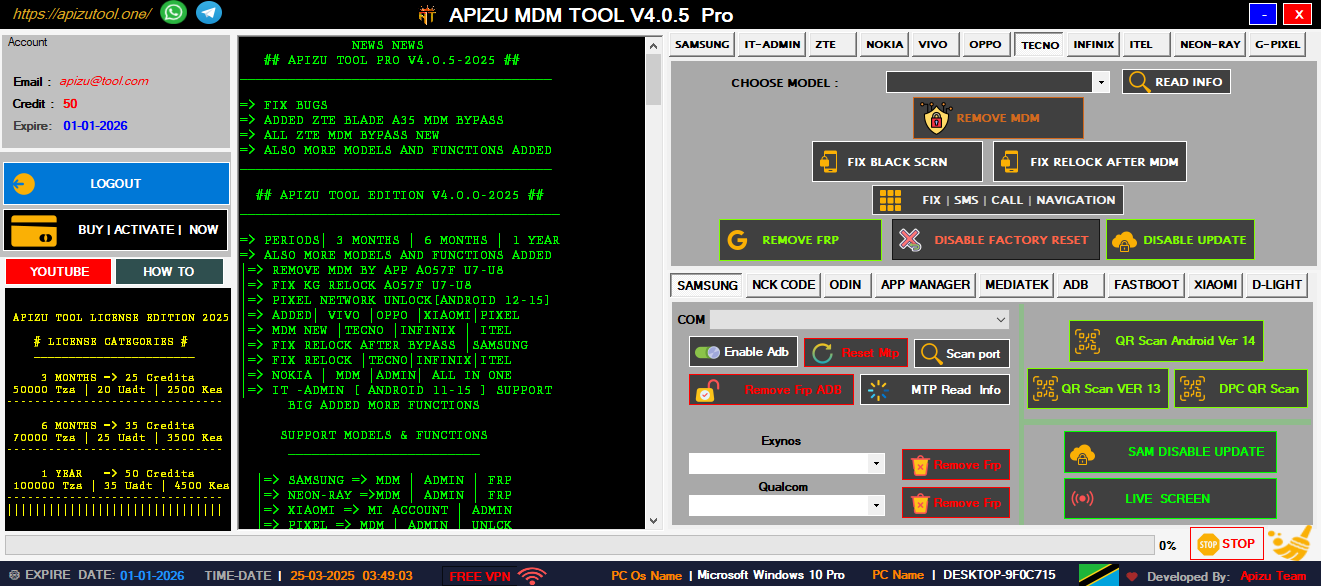
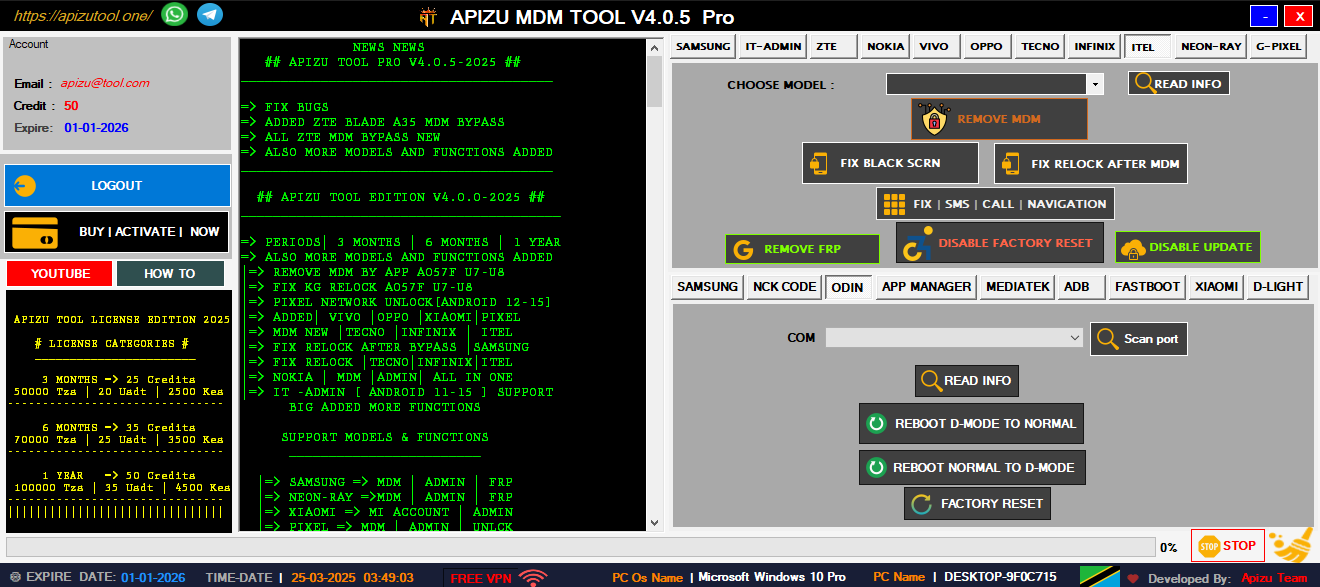
Unlock and manage devices from Nokia, Tecno, Infinix, and more brands.
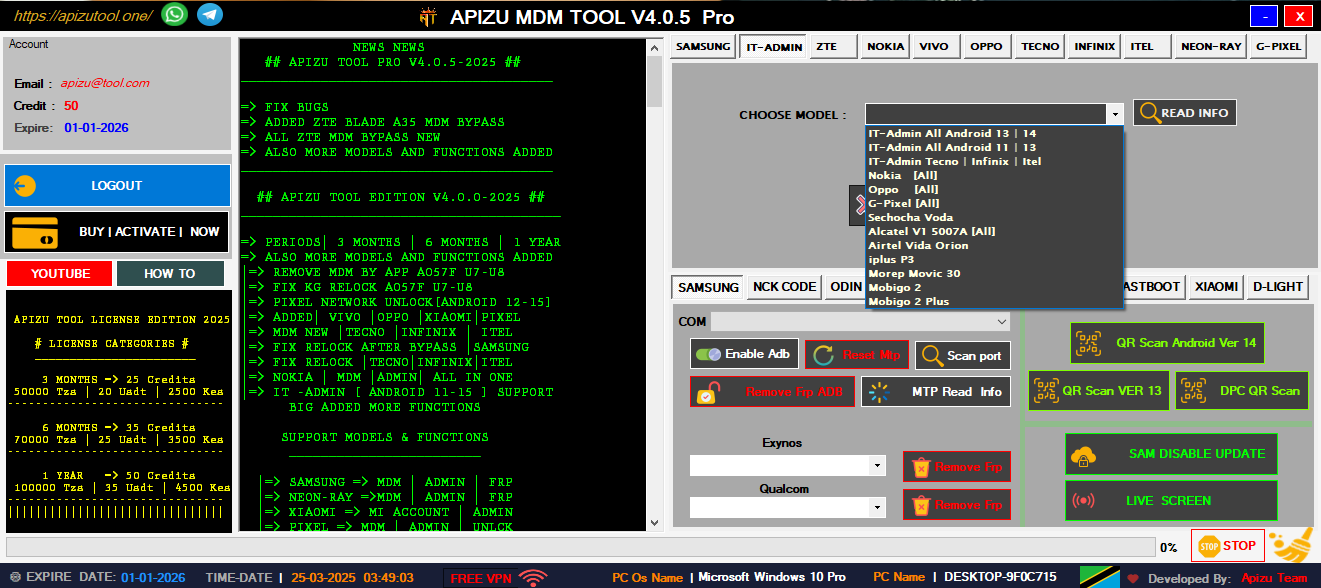
Complete IT tools for managing and unlocking all Android devices easily.
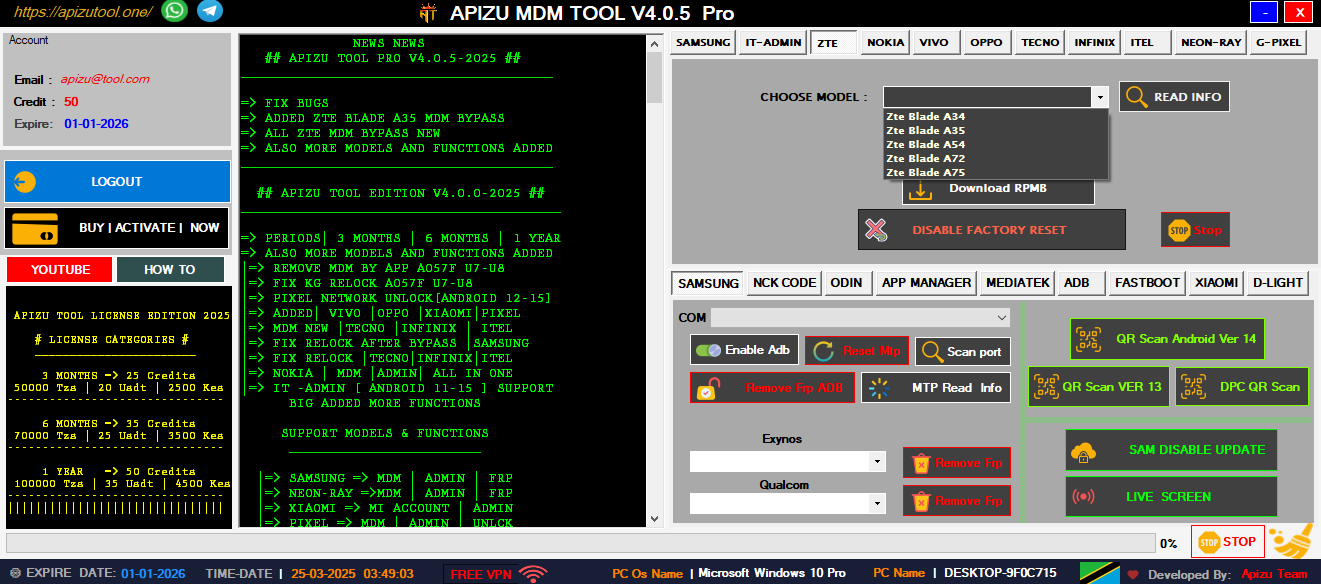
Remove ZTE MDM and admin locks quickly with one powerful tool.
Bypass FRP using ADB commands—fast, secure, and universal solution.
Unlock or remove Mi Account on Xiaomi phones safely and easily.
Professional mobile technician support application that solves complex device management challenges including MDM removal, admin bypass, and comprehensive device unlocking solutions.
Professional MDM Solutions
Comprehensive mobile device management tools designed for professional technicians and advanced users
Complete Samsung device management solution with advanced MDM removal capabilities for all Samsung models including latest Android versions.
Advanced QR scanning technology for device provisioning and configuration. Supports multiple QR formats and instant device recognition.
Factory Reset Protection removal for Android devices. Bypass Google account verification with our advanced algorithms.
Comprehensive support for Nokia, Tecno, Infinix, and other major Android brands. One tool for all your device management needs.
Complete device analysis and diagnostic tools. Identify hardware issues, software conflicts, and optimization opportunities.
All operations are performed with enterprise-grade security. Your device data remains protected throughout the process.
Professional mobile repair and technical support services for all your device needs
Professional cell phone repair services including screen replacement, battery replacement, and component-level repairs.
Complete software troubleshooting, OS updates, custom ROM installation, and bootloader unlocking services.
Professional network unlocking services for all carriers. Unlock your device to use with any network provider worldwide.
Now let's look at how the “Hunter Mode” works in practice: * Uninstall the application with a single click on the application icon... Revo Uninstaller How to use Hunter Mode and target any program on your ... HOW TO USE HUNTER MODE. Hunter Mode is an innovative and flexible method of interactively selecting a program that you want to uni... Revo Uninstaller How to use Hunter Mode and target any program on your ... HOW TO USE HUNTER MODE. Hunter Mode is an innovative and flexible method of interactively selecting a program that you want to uni... Revo Uninstaller Download Revo Uninstaller Free - Remove unwanted programs easily Hunter Mode is an innovative feature that allows users to easily uninstall or manage the automatic startup of programs. In Hunter ... Revo Uninstaller How to use Hunter Mode and target any program on your ... How to use Hunter Mode and target any program on your desktop. Products. For Windows. For Android. Buy Now. Support. Support. Tech... Revo Uninstaller Download Revo Uninstaller Free - Remove unwanted programs easily Hunter Mode is an innovative feature that allows users to easily uninstall or manage the automatic startup of programs. In Hunter ... Revo Uninstaller REVO UNINSTALLER PRO- HUNTER MODE Dec 10, 2018 —
If you are a Windows user looking for a cleaner, faster way to manage your software, is likely already on your radar. While the standard interface is great, its secret weapon is Hunter Mode . how to use hunter mode in revo uninstaller
To get started, open Revo Uninstaller on your computer. Look at the top toolbar and click on the Hunter Mode icon, which looks like a blue bullseye. Once clicked, the main Revo Uninstaller window will disappear, and a small, semi-transparent blue target icon will appear in the upper-right corner of your screen. You can click and drag this target anywhere on your desktop. This floating icon stays on top of all other windows, waiting for your command. Using the Target to Uninstall Programs Now let's look at how the “Hunter Mode”
When you are finished using the tool, you can easily return to the standard interface or close the program entirely. Right-click on the floating blue target icon to bring up a menu. From here, you can select Open Main Window to bring back the full Revo Uninstaller interface. If you are done with your maintenance tasks, select Exit to close the target and shut down the application. Hunter Mode is an innovative and flexible method
Hunter Mode is not just for uninstalls; it is also a powerful diagnostic tool. If you drag the target onto a window and select Stop Auto Starting, Revo will prevent that specific application from launching when you turn on your computer. This is incredibly useful for improving boot times. Additionally, the Kill Process option allows you to force-close a frozen or unresponsive application instantly. If you are unsure what a specific icon is, the Google It option will automatically open your web browser and search for the filename associated with that icon, helping you identify potential malware or unnecessary bloatware. Opening Installation Folders
By using Hunter Mode, you gain a level of control over your Windows environment that standard tools cannot provide. Whether you are hunting down a hidden adware toolbar or simply trying to stop a stubborn app from starting at boot, this visual "point and click" method is the fastest way to keep your system clean and organized.
*Pro Tip: You can drag
Need help or have questions? Our expert team is here to assist you with all your mobile device needs
Dar es Salaam, Tanzania
+255 653 420 210
myapizutool@gmail.com
24/7 Available