
|
Juq-201 |
Небольшая ознакомительная часть, чтобы понять, с чем собственно придётся иметь дело, и стоит ли вообще начинать. Ниже будет изложено моё личное мнение, которое не претендует на истину в первой инстанции. Людей много и вкусы у всех разные. Тем не менее как человек имеющий опыт работы в этой системе проектирования я могу дать свою оценку.
Начну пожалуй с того, что начинающему 3D проектировщику стоит определиться с целью использования CAD. Если ваша цель это мультимедиа и скульптура - данный CAD вам не подойдёт (если только вы не работаете в жанре примитивизма, кубизма или не собрались сделать 3D модель свинки ПЕПЫ). Если вы хотите проектировать технические объекты относительно невысокой сложности вы на верном пути... Посмотрим с чем мы имеем дело.
щелчком мышкиснять фаску с грани - не получится, надо нехило так извернуться.
тормозятв окне пред просмотра, а рендеринг сложных моделей (получение итогового STL файла) может занимать до 5-10 минут, по крайней мере на моей
пишущей машинке. Но это и понятно - работа с графикой всегда была ресурсозатратным делом. Частично решить проблему можно убавив количество граней на время отладки модели.
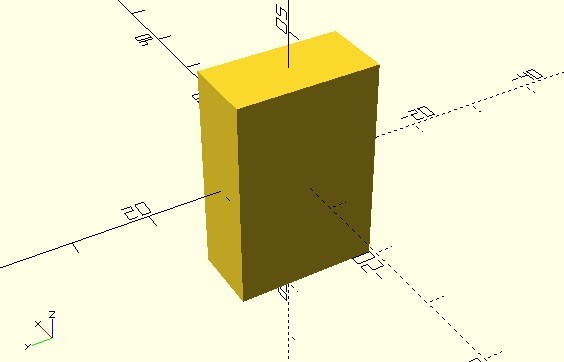
Параллелепипед с длинами сторон по X, Y, Z соответственно 10, 20, 30 в мм:
cube( size=[10,20,30], center=true );true/false - располагать по центру или в положительных полуосях. Короткие варианты написания кода: cube( [10, 20, 30], true ); cube( [10, 20, 30] );если последний параметр не указан принимает значение false a = [10, 15, 20]; cube(a);здесь a - параметр (матрица) содержит в себе значение сторон cube( 5 );куб стороной 5мм в положительных полуосях; |
 |
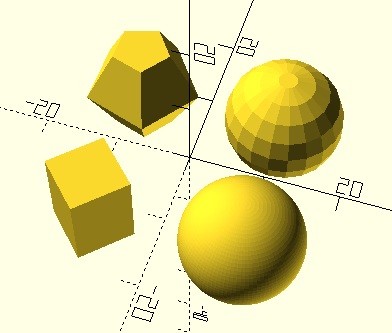
Сфера радиусом 8 мм, с разным разрешением $fn.
sphere(r=8, $fn=100); // Полное написание
sphere(8, $fn=20); // Короткое написание
sphere(8, $fn=4);
sphere(8, $fn=5);
Центр сферы всегда в начале координат. Вместо $fn можно задать параметр $fa - угловое разрешение и $fs - размер грани в мм. sphere(d=16, $fn=100); // Задать сферу через диаметр |
 |
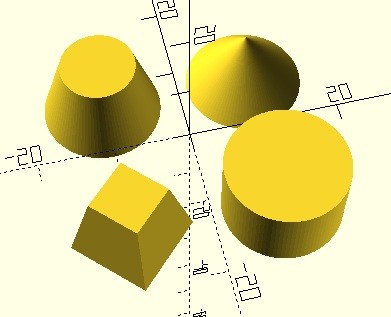
Через цилиндр можно задать конус, усечённый конус, пирамиду, усечённую пирамиду.
Первый параметр высота цилиндра, следующие это нижний радиус, верхний радиус, центровка и число граней $fn.
cylinder(h=10, r1=8, r2=5, center=true, $fn=100); // полное написание
cylinder(10, 8, 0, true, $fn=100); // краткое написание
cylinder(10, 8, 8, true, $fn=100);
cylinder(10, 8, 5, true, $fn=4);
Варианты написания: cylinder(h=10, d1=16, d2=10, true, $fn=100);// через диаметры оснований cylinder(h=10, r1=8, d2=10, true, $fn=100);// через радиус и диаметр онований cylinder(h=10, r=8, true, $fn=100);// если нужен просто цилиндр |
 |
|
Многогранник.
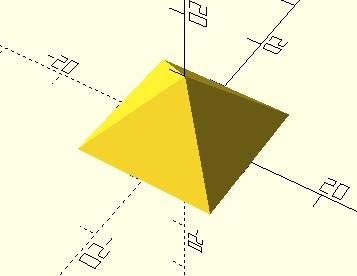
Через эту функцию можно задать любую поверхность. На практике используется редко. Почему? Думаю поймёте сами. Постройка пирамиды. Что требуется? Задать все вершины фигуры (points) в координатах [x, y, z]. Затем объединить в группу по 3 - получить треугольники, играющие роль граней (faces) многогранника. polyhedron( points=[ [10,10,0], [10,-10,0], [-10,-10,0], [-10,10,0], [0,0,10] ], faces=[ [0,1,4], [1,2,4], [2,3,4], [3,0,4], [1,0,3], [2,1,3] ] );Точки (points) с координатой z=0 - это вершины основания пирамиды, a последняя с x=0, y=0, z=10 - это пик пирамиды. Грани (faces) [0,1,4], [1,2,4], [2,3,4], [3,0,4] - это боковые треугольные грани, а последние две [1,0,3], [2,1,3] задают квадрат основания. Цифры в квадратных скобках, говорят какие точки объединить. Соответственно точки по порядку их следования 0 -> [10,10,0] , 1 -> [10,-10,0] и т.д. |
 |
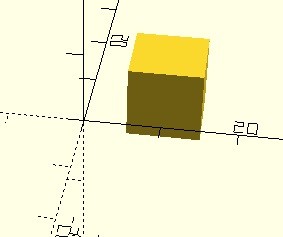
Перемещение объекта на x=10, y=10, z=0 относительно центра координат:
translate([10,10,0]) cube(10, true);Если нужно переместить группу объектов заключаем их в фигурные скобки: translate([10,10,0]) {/*Здесь код группы*/};
Применение нескольких вложенных переносов:
translate([10,10,0]) {
  cube(10, true);
  translate([0,0,5]) sphere(5, $fn=50);
};
Эквивалент примера выше:
translate([10,10,0]) cube(10, true); translate([10,10,5]) sphere(5, $fn=50); |
 |
|
Вращение.
На 75 градусов вокруг оси X: rotate([75,0,0]) cube(10, true);Вращение группы объектов: rotate([75,0,0]){/*Здесь код группы*/};
Вращение + перемещение.
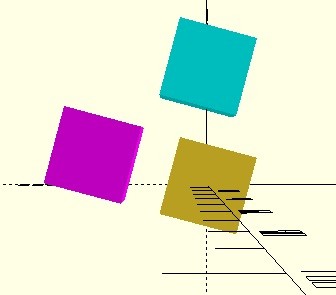
Две нижние строчки: color([0,1,1]) translate([0,0,15]) rotate([75,0,0]) cube(10, true); color([1,0,1]) rotate([75,0,0]) translate([0,0,15]) cube(10, true);Дают разные результаты. Имеет значение последовательность действий. Бирюзовый куб сначала повёрнут на 75 градусов вокруг оси X, а потом смещён на 15 мм по оси z. Сиреневый куб сначала смещён на 15 мм, а потом повёрнут. |
 |
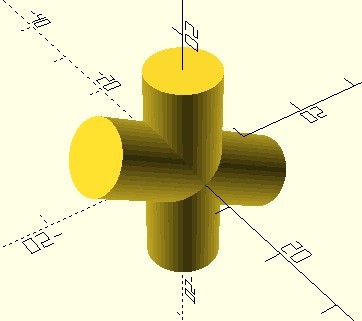
Сложение (объединение).
union(){
  cylinder(30, 5, 5, true, $fn=50);
  rotate([60,0,0]) cylinder(30, 5, 5, true, $fn=50);
};
Любое количество простых или сложных объектов в фигурных скобках будут объединены.
|
 |
|
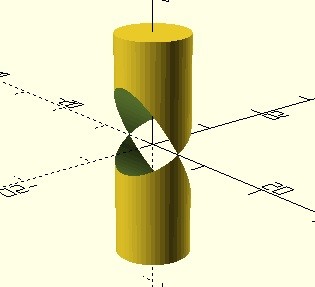
Вычитание (разность).
Из простого объекта указанного первым будут вычитаться все что указано ниже него. difference(){
cylinder(30, 5, 5, true, $fn=50);
rotate([60,0,0]) cylinder(30, 5, 5, true, $fn=50);
};
Из составного объекта указанного первым будут вычитаться все что указано ниже него.
difference(){
  union(){cylinder(30, 5, 5, true, $fn=50); cube(10, true);};
  rotate([60,0,0]) cylinder(30, 5, 5, true, $fn=50);
};
|
 |
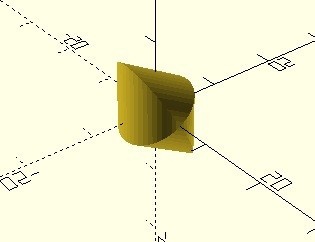
Произведение (пересечение).
У объектов внутри фигурных скобок находится общая часть - она и остаётся.
intersection(){
  cylinder(30, 5, 5, true, $fn=50);
  rotate([60,0,0]) cylinder(30, 5, 5, true, $fn=50);
};
|
 |
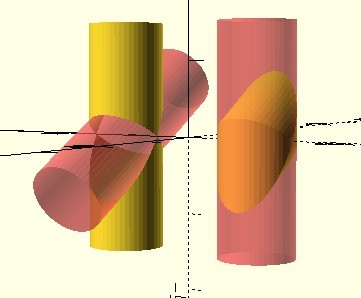
Чтобы сделать объект видимым или прозрачным при вычитании или пересечении, достаточно поставить решётку перед фигурой, объединением и т.п.
Модификатор очень удобен при отладке модели, когда не видно вычитаемых, пересекаемых фигур или если нужно заглянуть внутрь создаваемой модели.
translate([10,0,0]) difference(){
  cylinder(30, 5, 5, true, $fn=50);
  rotate([60,0,0]) #cylinder(30, 5, 5, true, $fn=50);
};
или
translate([-10,0,0]) intersection(){
  #cylinder(30, 5, 5, true, $fn=50);
  rotate([60,0,0]) cylinder(30, 5, 5, true, $fn=50);
};
|
 |
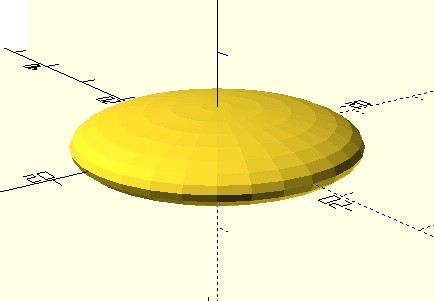
Сжатие. Растяжение.
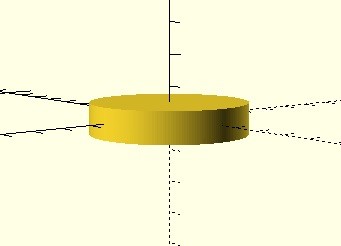
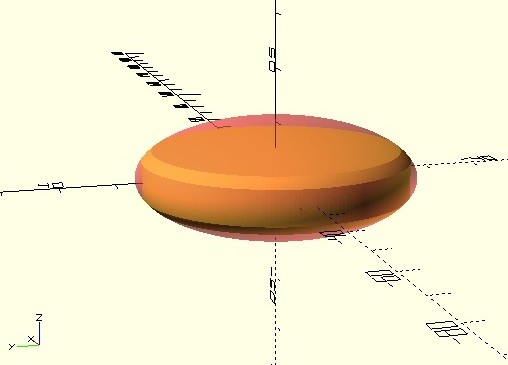
scale([2,2,0.5]) sphere(8, $fn=30);Соответственно по оси X и Y сферу растянули в 2 раза, а по оси Z сжали в 2 раза. |
 |
:
: If "juq-201" refers to a specific story, it could be a:
| Source Type | Example Citation (date) | Contextual Clues | What It Suggests | |-------------|------------------------|------------------|------------------| | | US 2023/0189456 A1 (Nov 2023) – “Method for stabilising quantum‑dot LEDs” – contains the internal label “JUQ‑201” in a schematic. | Appears in a technical diagram as a component identifier . | Likely a prototype or test chip used by a research team working on quantum‑dot LED (QD‑LED) technology. | | Conference abstract | Proceedings of the 2024 International Symposium on Nano‑Photonics – “Performance of JUQ‑201 under high‑temperature operation” (Poster #12). | Abstract mentions “device architecture,” “efficiency 12 %,” “operating at 85 °C.” | Reinforces the idea of a hardware prototype —possibly a QD‑LED or related optoelectronic device. | | Company internal document | “JUQ‑201 – Design Review 2” (internal PDF, dated 02‑Mar‑2024) leaked via a public GitHub repository belonging to Photonix Labs (a boutique photonics startup). | Includes a block‑diagram, BOM (Bill‑of‑Materials) showing “InGaAs substrate,” “ZnSe capping layer.” | Points to a research‑stage product from a small‑scale photonics company. | | Academic citation | Li, Y. et al., Applied Physics Letters 125, 2024, “Thermal Management in JUQ‑201 Devices.” | Paper discusses “thermal resistance R_th = 0.85 K W⁻¹” and “finite‑element simulations.” | Confirms that “JUQ‑201” is a device under experimental study , likely in a peer‑reviewed context. | | E‑commerce listing | “JUQ‑201 – Experimental Quantum Dot LED Module (Used, 1 unit)” on a niche scientific‑equipment marketplace (Oct 2024). | Price listed at $3 200, description: “Pre‑characterised, 450 nm peak, calibrated at 25 °C.” | Indicates that at least one unit was shipped to an external lab, suggesting limited commercial availability . | juq-201
The narrative centers on a couple, Nao and her husband Takimoto, who are approaching their fifth wedding anniversary. To celebrate, Nao suggests a spicy activity: a nude photoshoot. However, when Takimoto consults his boss, Tony, the situation spirals into a "netorare" (NTR) or cuckolding scenario where the wife becomes involved with the boss. Production Details
“JUQ‑201” is most plausibly a prototype quantum‑dot LED module developed by a small research‑oriented organization (likely Photonix Labs ) and has been demonstrated in academic venues with modest but respectable performance figures (≈12 % EQE, blue emission at ~450 nm, functional up to 85 °C). : : If "juq-201" refers to a specific
| Parameter | Reported / Inferred Value | Source | |-----------|---------------------------|--------| | | Quantum‑dot LED (QD‑LED) module | Patent, conference abstract | | Emission peak | ~450 nm (blue) | Marketplace listing | | Substrate | InGaAs (Indium Gallium Arsenide) | Internal design doc | | Capping layer | ZnSe (Zinc Selenide) | Internal design doc | | Peak external quantum efficiency (EQE) | ≈12 % (reported under lab conditions) | Conference abstract | | Operating temperature range | Up to 85 °C (tested) | Conference abstract | | Thermal resistance | R_th ≈ 0.85 K W⁻¹ (simulated) | Applied Physics Letters paper | | Form factor | Small‑area (≈2 mm × 2 mm) module, wire‑bonded to a carrier board | Marketplace listing | | Status | Prototype / limited‑run experimental unit | All sources |
| Step | Description | Practical Tips | |------|-------------|----------------| | | Use business‑registry searches, LinkedIn, and domain WHOIS to locate “Photonix Labs” or any other organization referenced. | Look for “Photonix Labs” in the California Secretary of State database; verify the address matches the GitHub repo metadata. | | 2. Secure the primary technical paper | The Applied Physics Letters article likely contains the most rigorous data. | Use institutional access (e.g., via a university library) or request a pre‑print from the corresponding author (email usually listed on the abstract). | | 3. Conduct a targeted patent search | Search the USPTO, EPO, and CNIPA databases for “quantum‑dot LED” combined with “InGaAs” and “ZnSe.” | Use the classification codes H01L 27/08 (quantum‑dot optoelectronics) and H01L 23/00 (semiconductor devices). | | 4. Reach out for a datasheet | Contact the author of the conference abstract or the seller on the marketplace platform. | Draft a concise email stating your interest (research vs. commercial) and request a non‑confidential data sheet . | | 5. Evaluate performance vs. alternatives | Build a side‑by‑side spreadsheet comparing JUQ‑201 specs with known commercial QD‑LEDs. | Include metrics: EQE, peak wavelength, drive current, thermal resistance, cost per unit, and known reliability data. | | 6. Plan a feasibility test (if you have access to a lab) | Obtain a unit (if possible) and run standard LED characterisation (IV, L‑I, spectral, temperature sweep). | Use a calibrated integrating sphere (e.g., Labsphere 1‑integrating sphere ) and a temperature‑controlled stage. | | 7. Document findings & decide next steps | Summarise the data, risk, and cost to inform go/no‑go decisions for integration or licensing. | Prepare a brief for senior management that includes a SWOT analysis (Strengths, Weaknesses, Opportunities, Threats). | | | Conference abstract | Proceedings of the
The JUQ-201 team consisted of experts from various fields: engineering, biology, and medicine. Their goal was to create a habitat that could support human life for generations, using Mars' resources efficiently.